This article introduces the procedure for outputting images of rich text fields in Salesforce to documents in Office File Creator.
*This feature is available in Office File Creator Pro.
Output Sample
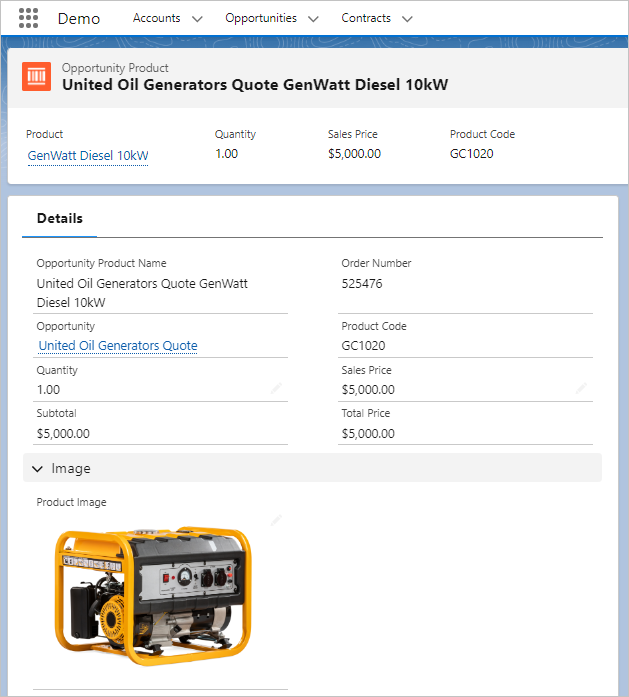
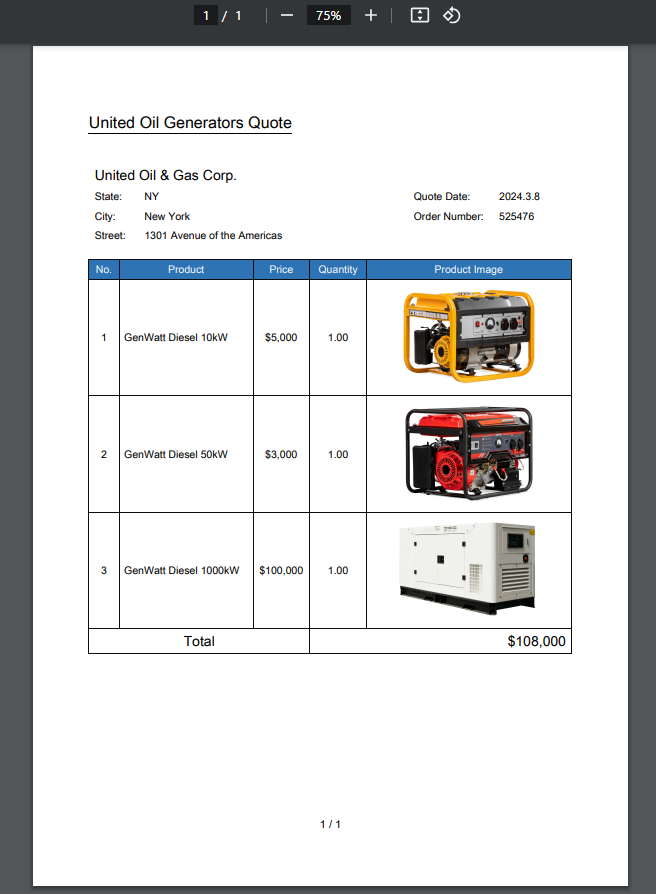
As an example, output images of rich text fields of products to PDF.
Opportunity and Products
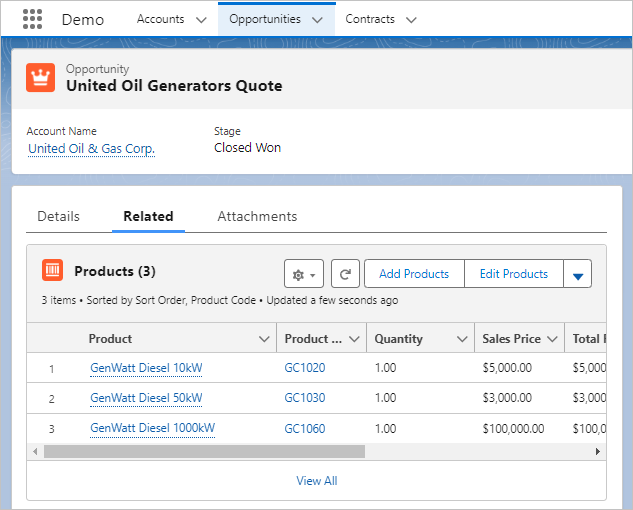
Product
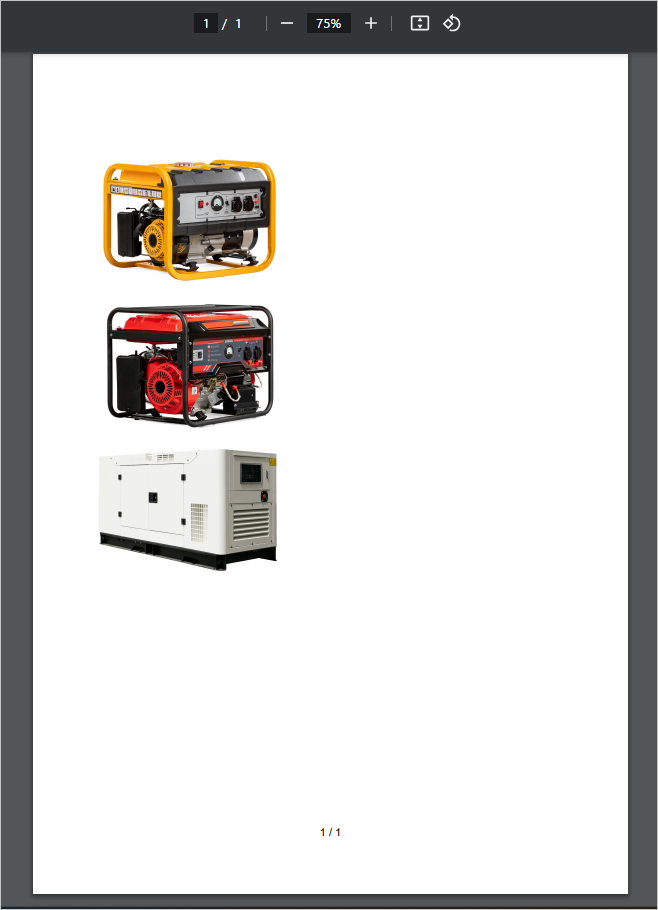
PDF after output
When outputting an image to PDF, the image is output from the preview of the custom button. After previewing the PDF, download the PDF from your browser.
Memo
The Download and Save to File buttons cannot be used when outputting images to PDF. If the total image size exceeds 2-3 MB or there is a lot of text content, an error will occur when downloading the file or saving it as an attachment to a record.
Settings
Merge Fields Settings
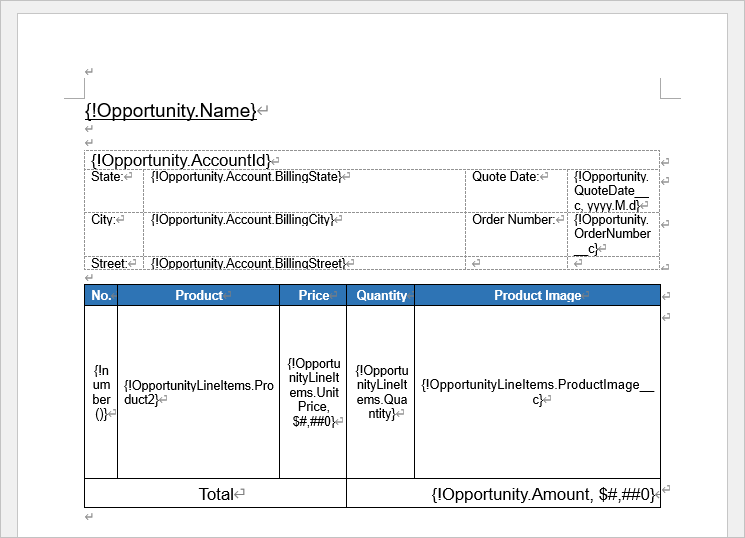
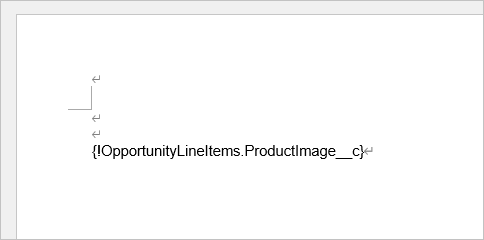
Merge fields for images are the same as other fields, with {!Object API Name.Field API Name}, or for a child object, {!Child Relationship Name.Field API Name}. This time, output the image of the rich text field "ProductImage__c" of the child object.
{!OpportunityLineItems.ProductImage__c}
Create OFC_Template Record
Create an OFC_Template record and upload the template file.
Create OFC_Child Object Option Record
Create a record from the "New" button on the "Child Object Options" tab of the OFC_Template record screen.
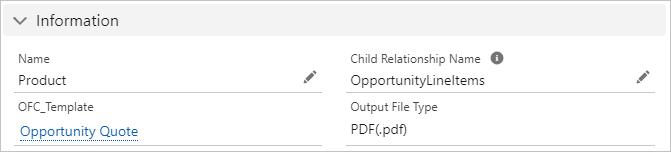
Information
Name: Enter any name. In this case, enter "Product".
Child Relationship Name: OpportunityLineItems
Sort Order
Set the sort order to ascending by Product Code.
Sort Field 1 API Name: ProductCode
Sort Field 1 Order: Ascending (NULLS LAST)

(Pro) Image
Enter the image field set for the merge field.
Image Field API Name: ProductImage__c

OFC_Template Record Settings
Set the image size. Size settings are set in OFC_Template for all the master object, child objects, and attachments.
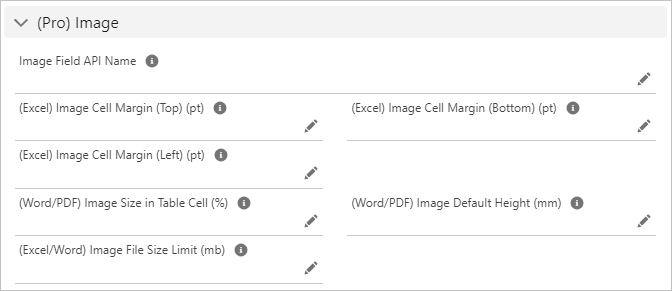
(Pro) Image
Image Field API Name: Enter the image field name for the master object. In this case, leave blank since the image is a child object field.
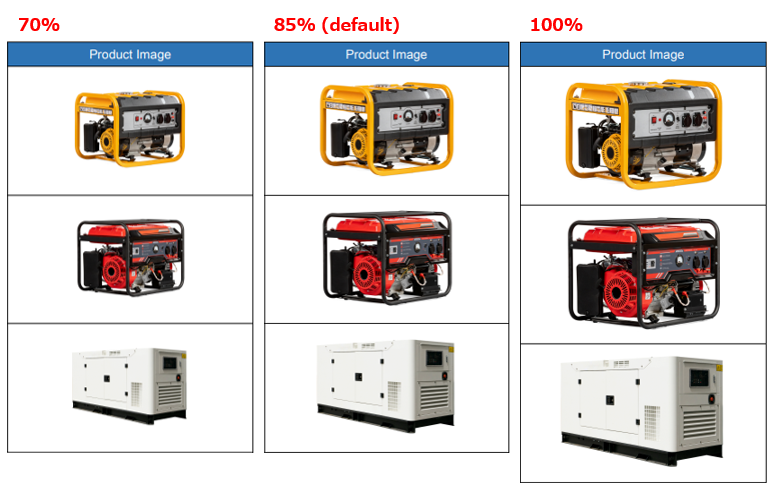
(Word/PDF/HTML) Image Size in Table (%): If left blank, the default of 85% is applied. This time, leave it blank to use the default.
(Word/PDF/HTML) Image Height (mm): This is used when the row height of a table is not specified or for images outside of table cells. If left blank, the default of approximately 50 mm is applied. This time, the row height of the table is specified in Word, so this setting is not required.
Memo
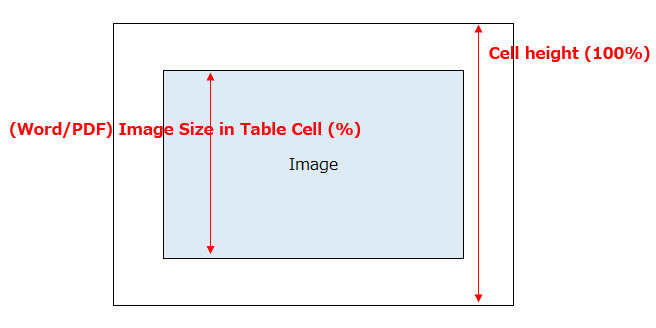
(Word/PDF/HTML) Image Size in Table (%)
The image size is determined by the cell height in the table. Set a value smaller than 100% for "(Word/PDF/HTML) Image Size in Table (%)" to have margins for a cell height of 100%. Default is 85%.
(Word/PDF/HTML) Image Height (mm)
Specify if the row height of the table is unspecified or if the image is outside of a table cell. Default is 50 mm.
A4 size PDF at 50mm (default)
Test Output
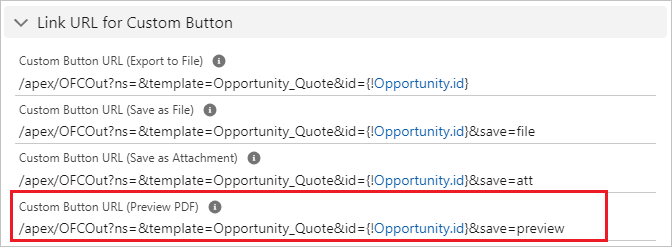
This completes the setup. Use the "PDF Preview" button to test the PDF image output.
Create Custom Button
Use the "Custom Button URL (PDF Preview)" in the OFC_Template record for the URL of the custom button. PDF image output does not support downloading or saving to file.
Output File
After viewing the preview, download the file from your browser.
Limitations/Considerations
Refer to Output Images for limitations and considerations when outputting images.