This article will show you tips for creating Word templates for PDF output in Office File Creator.
Output Page Number/Page Count
Use the following merge fields in the footer or header for page numbers and total number of pages. Word field codes are not supported.
Page Number・・・{!pagenumber()}
Page Count・・・{!pagecount()}

Line Spacing
Clear the "Snap to grid when document grid is defined" check box under Paragraph > Indents and Spacing in the Word template. When checked, the line spacing is quite wide in the output. When unchecked, the PDF output will be slightly narrower than the line spacing in the Word template.
- Select all existing contents in the template with "Ctrl+A" and clear the check box in the Paragraph dialog.
- Clear the check box in the Paragraph dialog for the styles in use, such as the Normal style.

Text Position in Tables (Centered/Bottom-Aligned)
When setting the vertical position of text in a cell, set the Table Properties and Paragraph. If only table properties are set, the text may not appear at the intended position.
Align text in cells to the center (vertical)
- From Table Properties > Cell tab, set vertical alignment to "Center"
- From Paragraph > Indents and Spacing tab, set the Line spacing to "Single"
Align text in cells to the bottom
- From Table Properties > Cell tab, set the Vertical alignment to "Bottom"
- From Paragraph > Indents and Spacing tab, set the Line spacing to "Exactly" and adjust the "At" value
Setting Merge Fields in Tables
From Table Properties > Table tab > Options, clear the "Automatically resize to fit contents" check box.
"Automatically resize to fit contents" is checked
The merge fields extend horizontally and the correct column widths are not displayed.
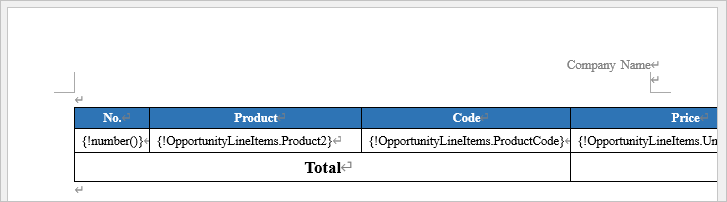
"Automatically resize to fit contents" is unchecked
The correct column widths are displayed.

Different layouts on the left and right sides
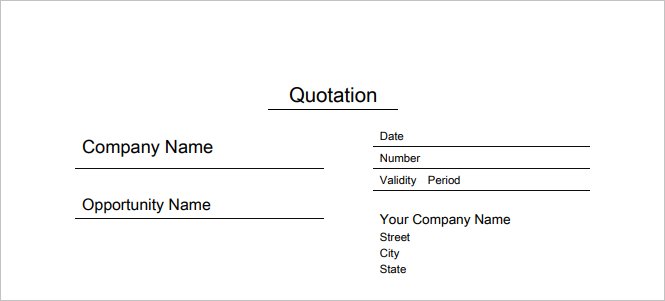
For different layouts on the left and right sides, create a single table and set it up by dividing cells and showing/hiding table borders. Tables cannot be placed side by side, nor can text be displayed next to a table.
Layout example (cell division, showing/hiding borders)

Output result
Striped Layout
To output child records with alternating row colors, enter two child object rows. For example, if the first line has a blue background and the second line has a white background, odd-numbered lines are output with a blue background and even-numbered lines with a white background. Alternatively, set the format from the table design.
Images (company logo, seal, etc.)
Template files can include images such as company logos. Considerations for images are below.
Objects not supported
Objects such as shapes and text boxes are not supported. Objects may not be output, the background color may not be output correctly, or output may take a long time. Right-click on the object and select "Save as Picture" to save it as an image and replace the object with an image.
Image over text not supported
It is not possible to output an image over text. Follow the steps below to set the text + image capture image to the template.
- Save the Word template file as a PDF manually.
- Open the PDF, enlarge the target text and image to 200-400%, and save the screen capture as an image.
- Insert the image into the template.
*When taking a screen capture, enlarge the text and image because they are blurred at full size. However, if the image size is too large, an output error will occur. Adjust the magnification ratio accordingly.
Reference