This article is a step-by-step guide to setting up the output of PDF files in Salesforce using Office File Creator, along with examples. The main step is template file creation.
For installation and permission setup, please refer to this page.
Create a template file
To output a PDF, create a template file in Word. Use the Word template file created in the article Generate a Word document in Salesforce using Office File Creator.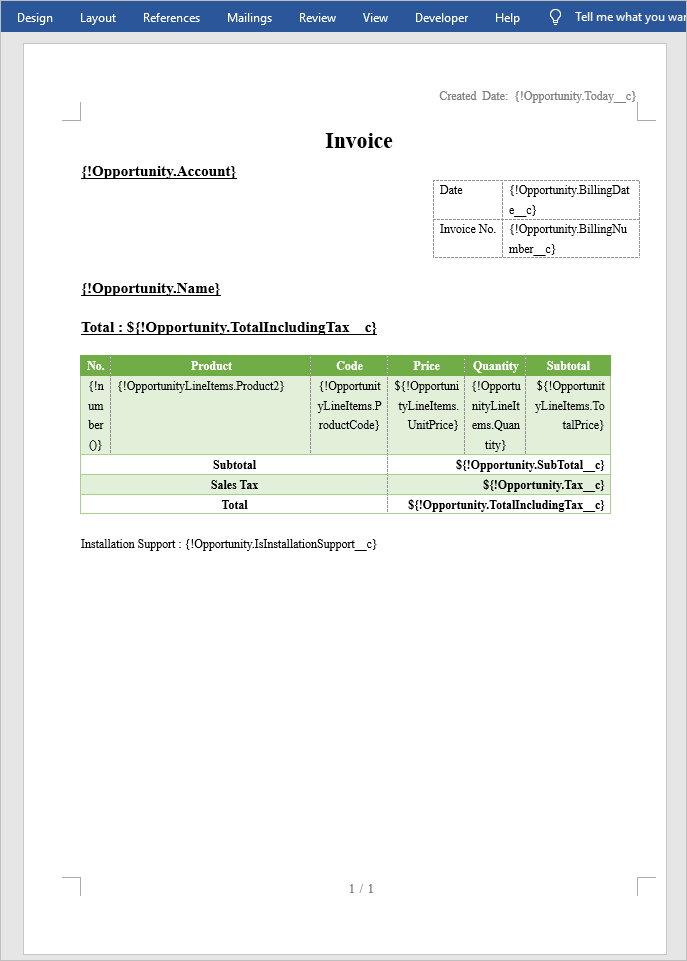
There are some considerations when creating Word templates for PDF.
- Only four fonts are output for PDF. When using multibyte characters such as Japanese, only Arial Unicode MS fonts are output.
- Word field codes such as page numbers cannot be used. To output page numbers and the total number of pages, use Office File Creator's functions {!pagenumber()} and {!pagecount()}.
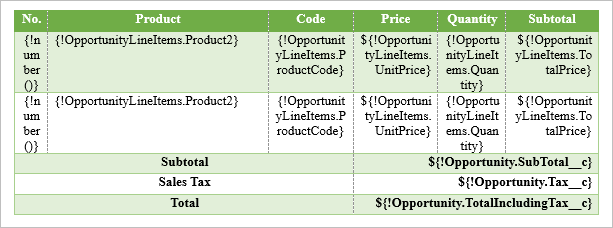
- To output child records with alternating row colors, set two rows of child object merge fields.
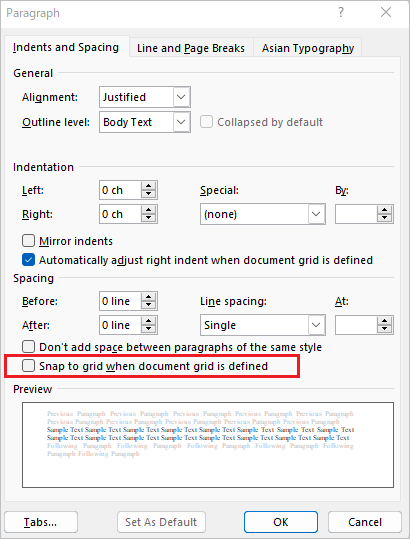
- Clear the "Snap to grid when document grid is defined" check box.
Only four fonts are output for PDF
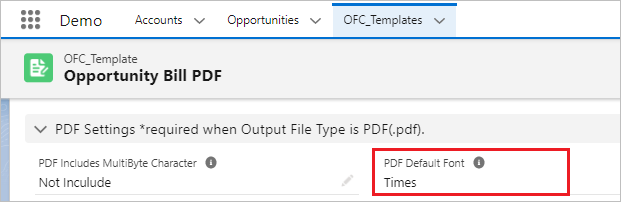
Only the following four fonts are output for PDF. Fonts other than the following Word Fonts are output in the font set in the "PDF Default Font" in the OFC_Template record.
When using multibyte characters, all characters are output in Arial Unicode MS.
PDF Font
| Word Font | PDF Font |
| Arial | Arial Unicode MS |
|
Microsoft Sans Serif Tahoma Helvetica |
Helvetica (sans-serif) |
|
Times New Roman Times Century |
Times (serif) |
|
Courier New Courier Monospace |
Courier (Monospace) |
"PDF Default Font" of OFC_Template Record
*When outputting PDF files, the following restrictions apply for languages that include multibyte characters, such as Japanese.
Office File Creator uses Visualforce's PDF generation function when creating PDF files, and there are restrictions on the Visualforce function when outputting multibyte characters.
- It is not applied with the fonts set in the Word template; all output is in Arial Unicode MS.
- Arial Unicode MS does not support bold or italic styling.
- User-defined characters (gaiji) are not output.
Reference: Visualforce Developer Guide
Fonts Available When Using Visualforce PDF Rendering
Word field codes such as page numbers cannot be used
Word field codes cannot be used. To output page numbers and the total number of pages, replace them with Office File Creator's function. When outputting a file, if there are multiple pages, they are output as 1/3, 2/3, 3/3, and so on.
Page number: {!pagenumber()}
Page count: {!pagecount()}
Change page number and total number of pages in field code to function.

Set two rows of child object merge fields to output alternating row colors
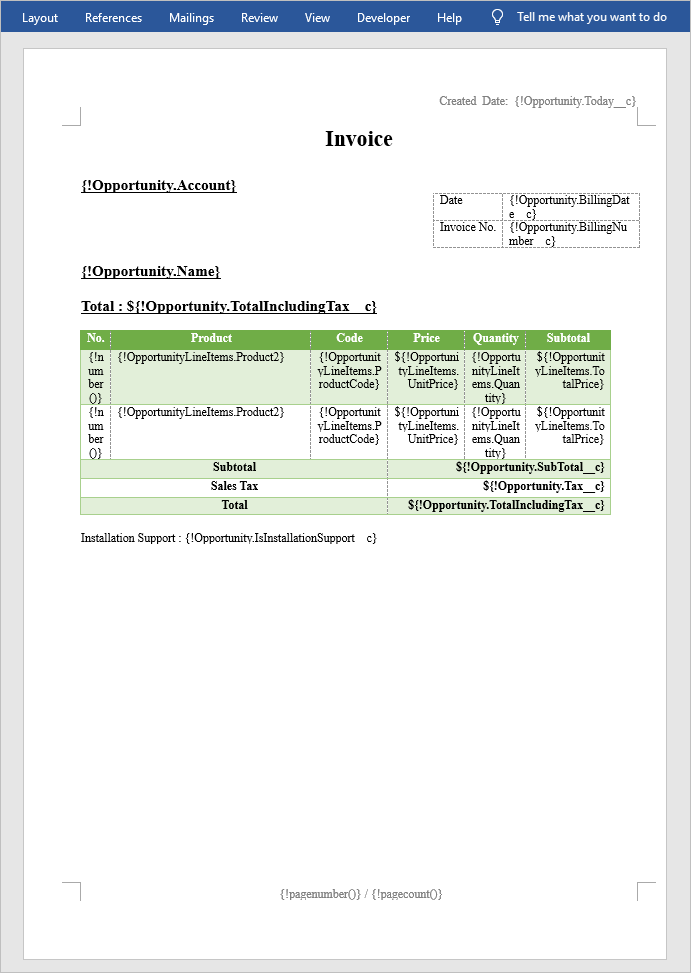
To output child records with alternating row colors in PDF output, set two rows of child records and set the format for each.
Set 2 rows of child records
Clear the "Snap to grid when document grid is defined" check box
If the "Snap to grid when document grid is defined" check box is selected in paragraphs, the line spacing may differ from the Word template when output in PDF. To match the line spacing between the Word template and the PDF, clear the "Snap to grid when document grid is defined" check box.
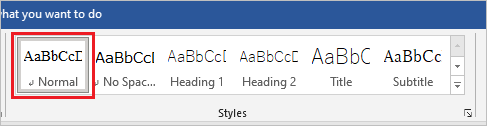
From "Styles" in Word, right-click on the style "Normal" and select "Modify".
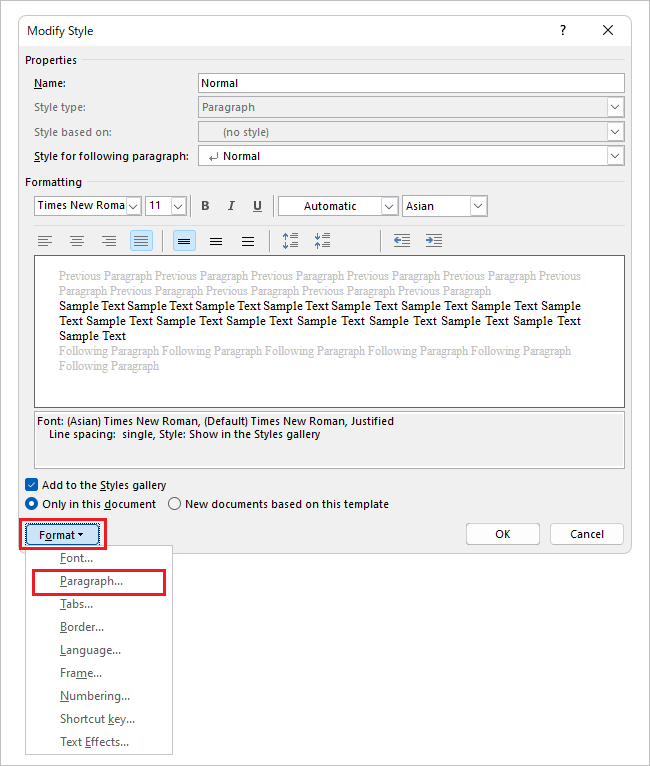
From "Modify Style", select "Format" > "Paragraph".
Clear the "Snap to grid when document grid is defined" check box and click "OK". If the line spacing is narrow, adjust the line spacing and distance between lines.
The template file is now complete.
Create a template record and custom button
Create template records and custom buttons as in the Excel version. See below for detailed instructions.
Generate an Excel file in Salesforce using Office File Creator - (2) Create a template record
Generate an Excel file in Salesforce using Office File Creator - (3) Create custom buttons
A sample file output is shown below.
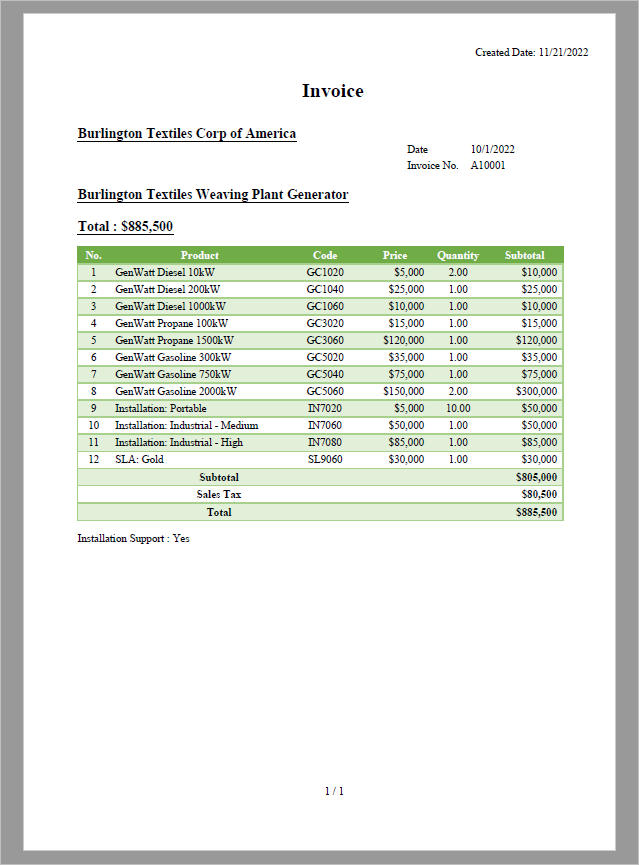
The template file created in this article can be downloaded below.
Word Template File for PDF

PDF Output Sample